




Case study
Adzi: AI ad creation, with learning built in
A web app for small business owners creating their own ads. Generation is the core task; advertising education helps users build the knowledge to keep creating.
My role
Product Designer
My contribution
Product structure / UX and UI / Creative workflows / Learning patterns / Onboarding
Product status
Launched web app
Target audience
- Solopreneurs and small business owners
- Aged 35+, in Tier 1 markets
Stage 1 · Research & product direction
Creative generation was the core. Learning gave Adzi its direction.
AI ad creation was already an established category, with products such as Zeely, TryHolo, Hexa, Impresso AI, Creatify, Vibiz.ai and Magicfit. We researched these players to understand the market and the creation flows users could already find.
We chose creative generation as Adzi’s main function. Our contribution was to combine it with advertising education: the team already had experience building learning products, and we used that expertise to give Adzi a distinct direction alongside its creative tools.
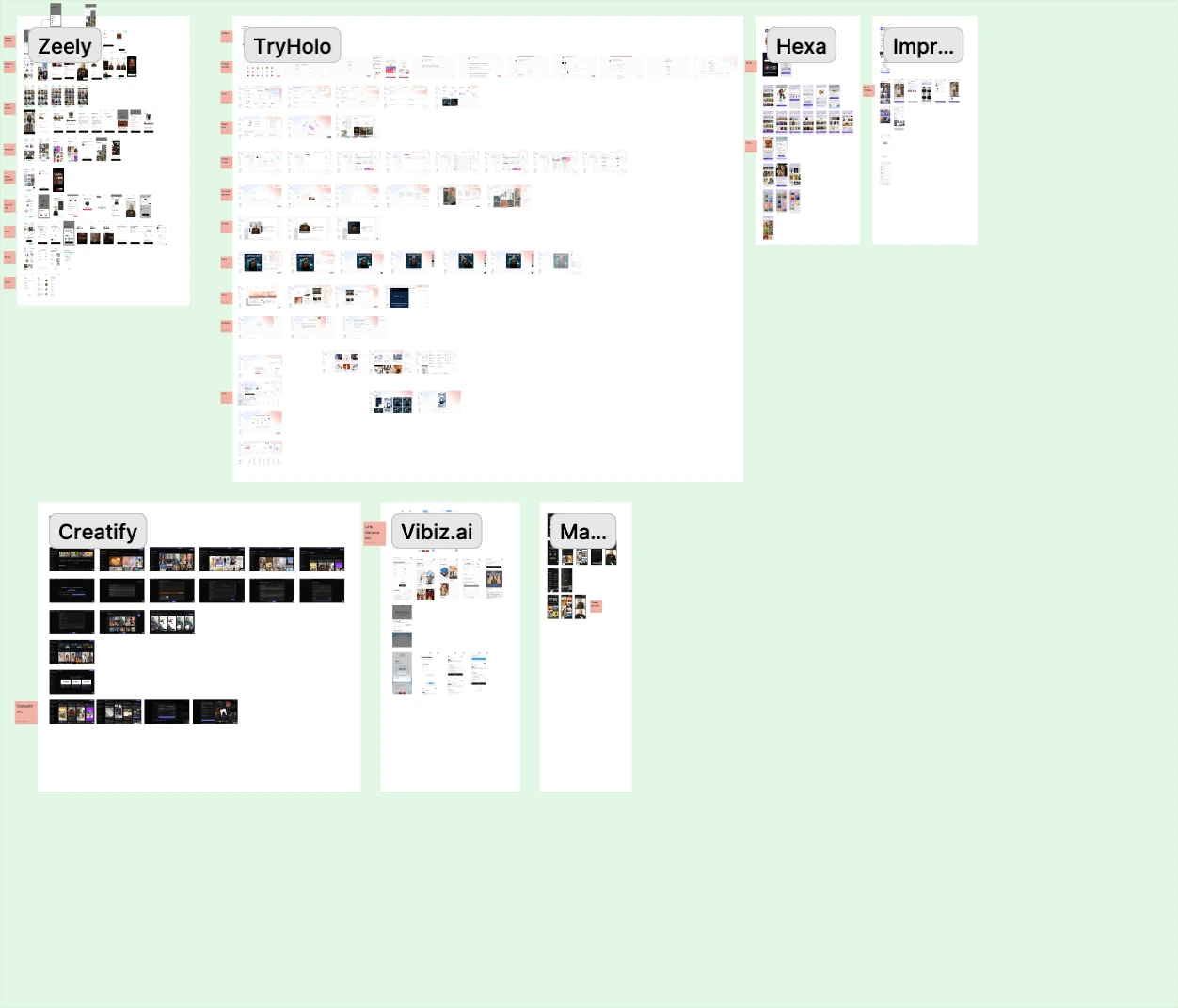
The research board: the creation flows of seven AI ad tools, collected screen by screen.
- An existing category
Market context: research established players before shaping the product’s main creation flow.
- Create an ad
Core function: guide users from a product and a visual reference to a finished creative.
- Learn while creating
Our expertise: bring the team’s learning-product experience into the advertising workflow.
What we learned after launch
Learning became a frequent starting point. Usage analytics showed that users often entered the product and began learning. At that point, there was no onboarding journey into generation. This insight informed the later onboarding iteration, which guided users toward their first creative.
Stage 2 · Design development
Four tabs, each with a distinct job
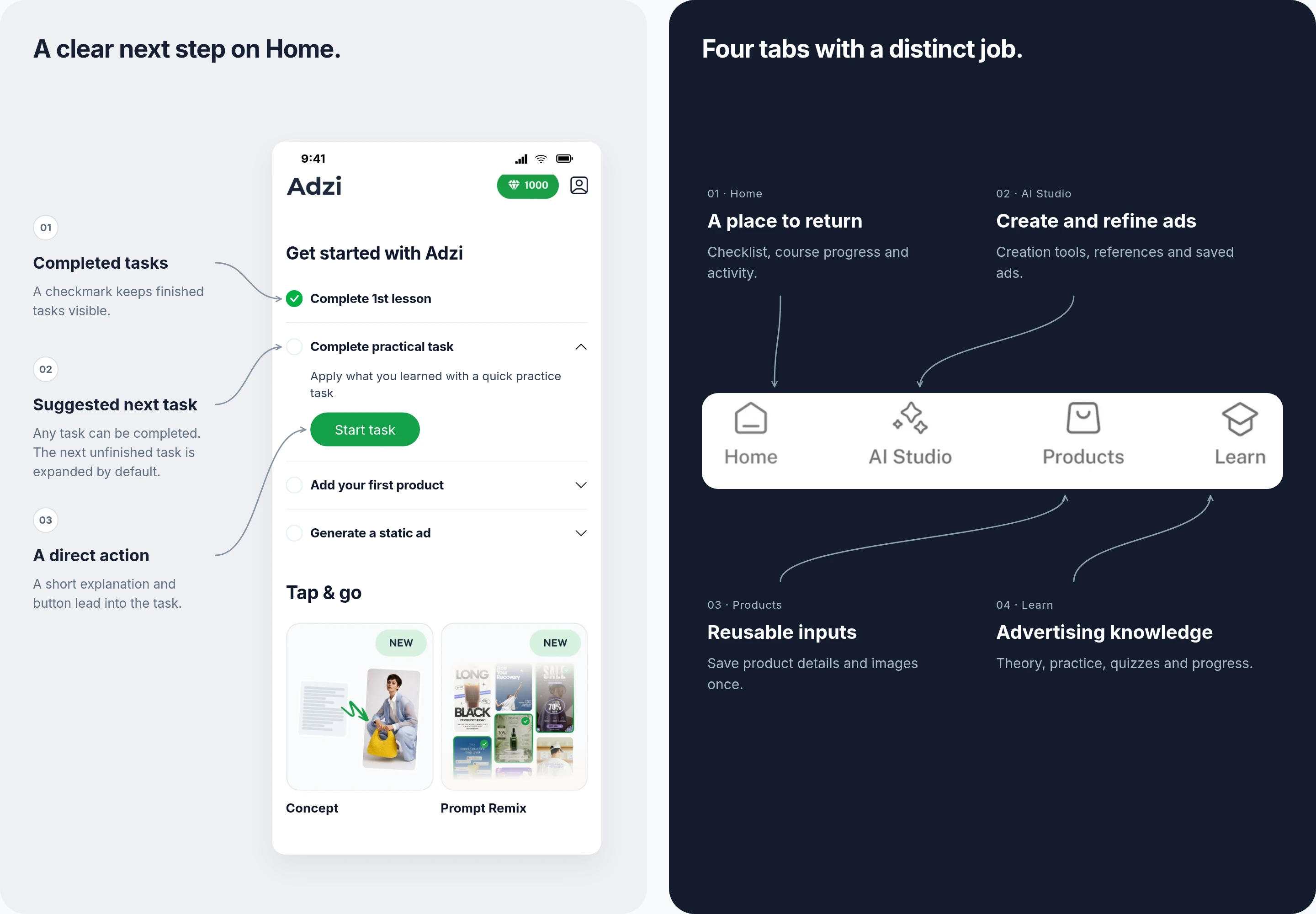
Home is a place to return to, with the checklist, course progress and activity. AI Studio holds the creation tools, references and saved ads. Products keeps reusable inputs, and Learn brings theory, practice, quizzes and progress.
Home: first a checklist, then a course to continue
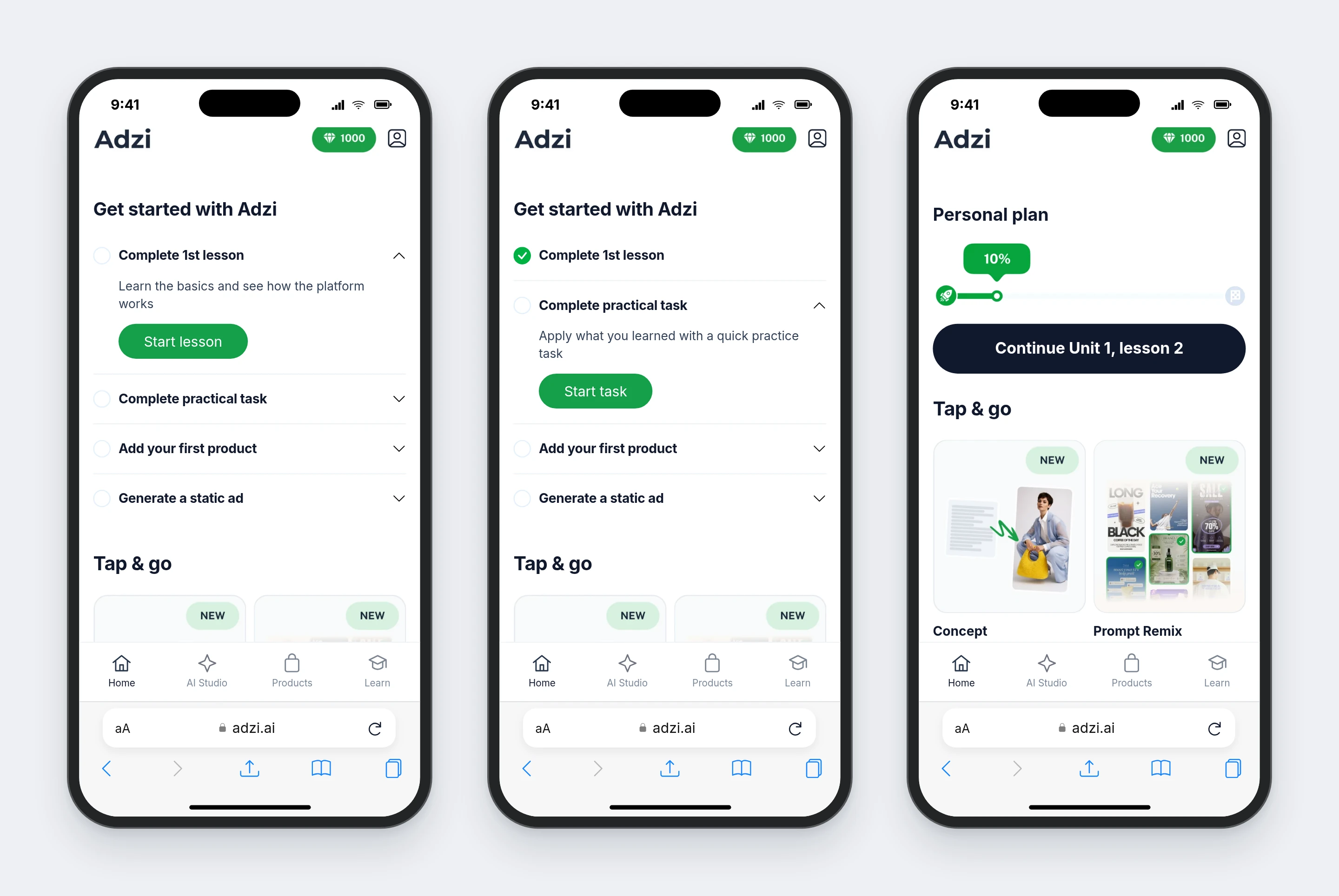
The checklist connects four useful first actions: finish a lesson, apply it, add a product and create an ad. Users can complete any task at any time. By default, the next unfinished item in chronological order is expanded. After all four tasks are complete, the personal course track replaces the checklist.
How the checklist works
The expanded item contains a short explanation and a green action button. Empty circles show unfinished tasks; completed tasks retain a green checkmark. The suggested order guides the first visit without restricting which task can be completed.
- 01Complete the first lesson
Introduce the basics and show how the platform works. Start lesson → learning
- 02Complete the practical task
Apply the lesson in a short practice task. Start task → practice
- 03Add the first product
Save the product details and images needed for ad creation. Add product → product setup
- 04Generate a static ad
Use the product to create the first creative. Generate ad → creation
When all four tasks are complete
Home replaces the checklist with Personal plan: course progress and a button to continue the next lesson. Tap & go remains available alongside the course track.
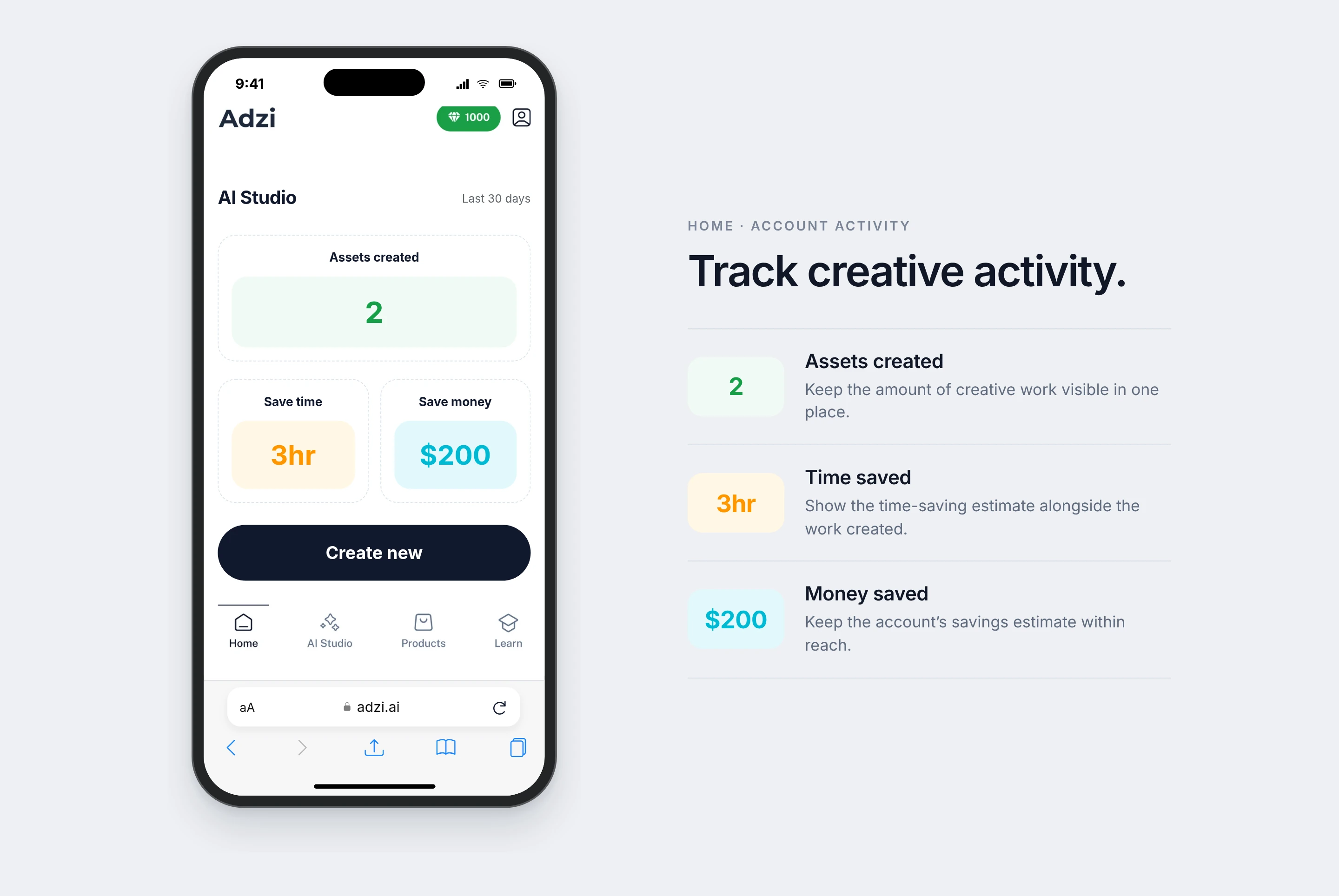
Keep activity visible
Home keeps account activity within reach: assets created, time saved and money saved. The example below shows these three values together.
AI Studio / Concept: from a saved product to a finished creative
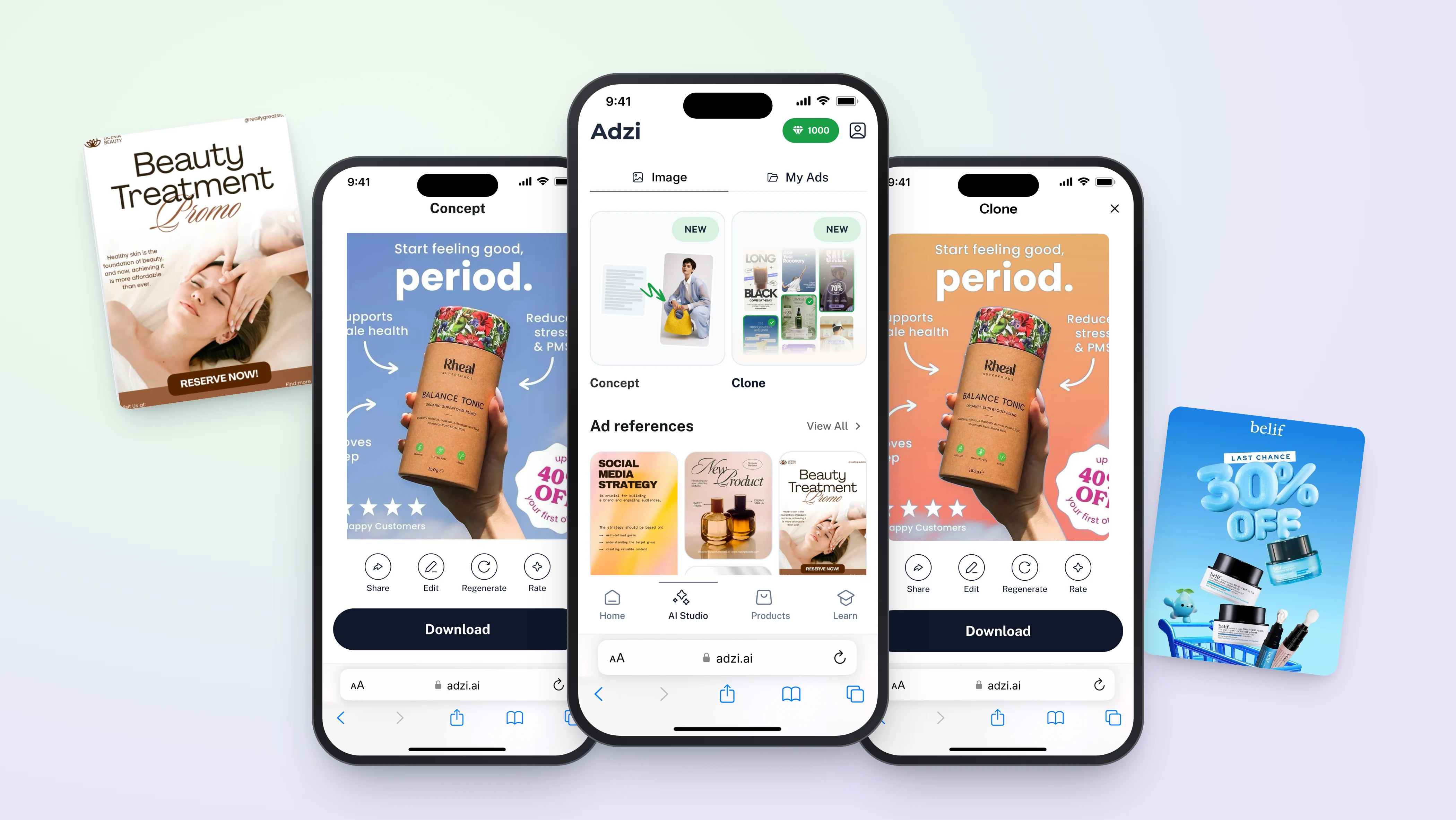
Concept breaks creation into decisions: product, format, reference and an optional idea. The selected reference carries into the brief, so the result can follow its light, palette and composition.
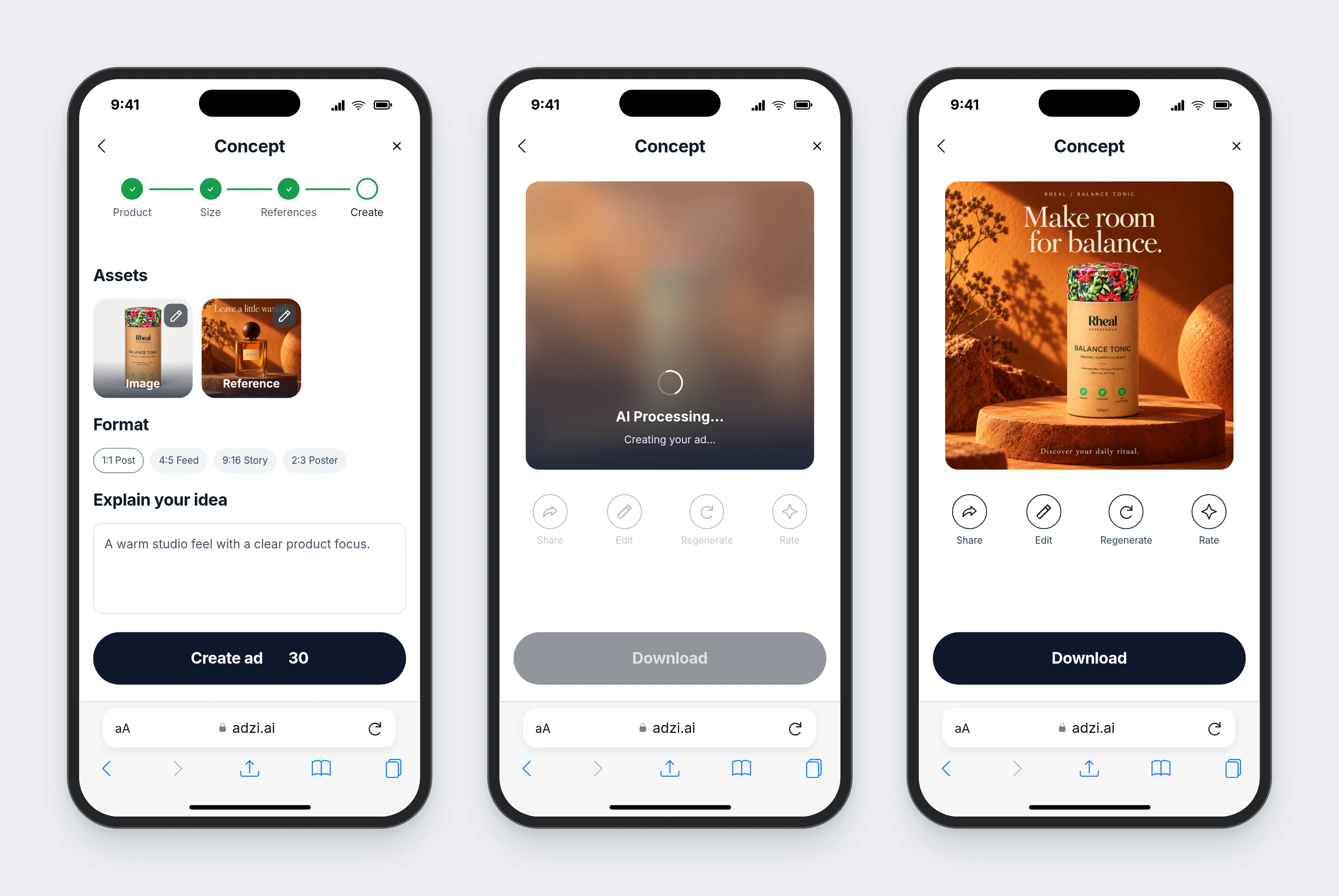
Concept · full creation flow: open AI Studio, choose the product, set the format, choose a visual direction, add an idea, create the ad, review and download it, then return to My Ads.
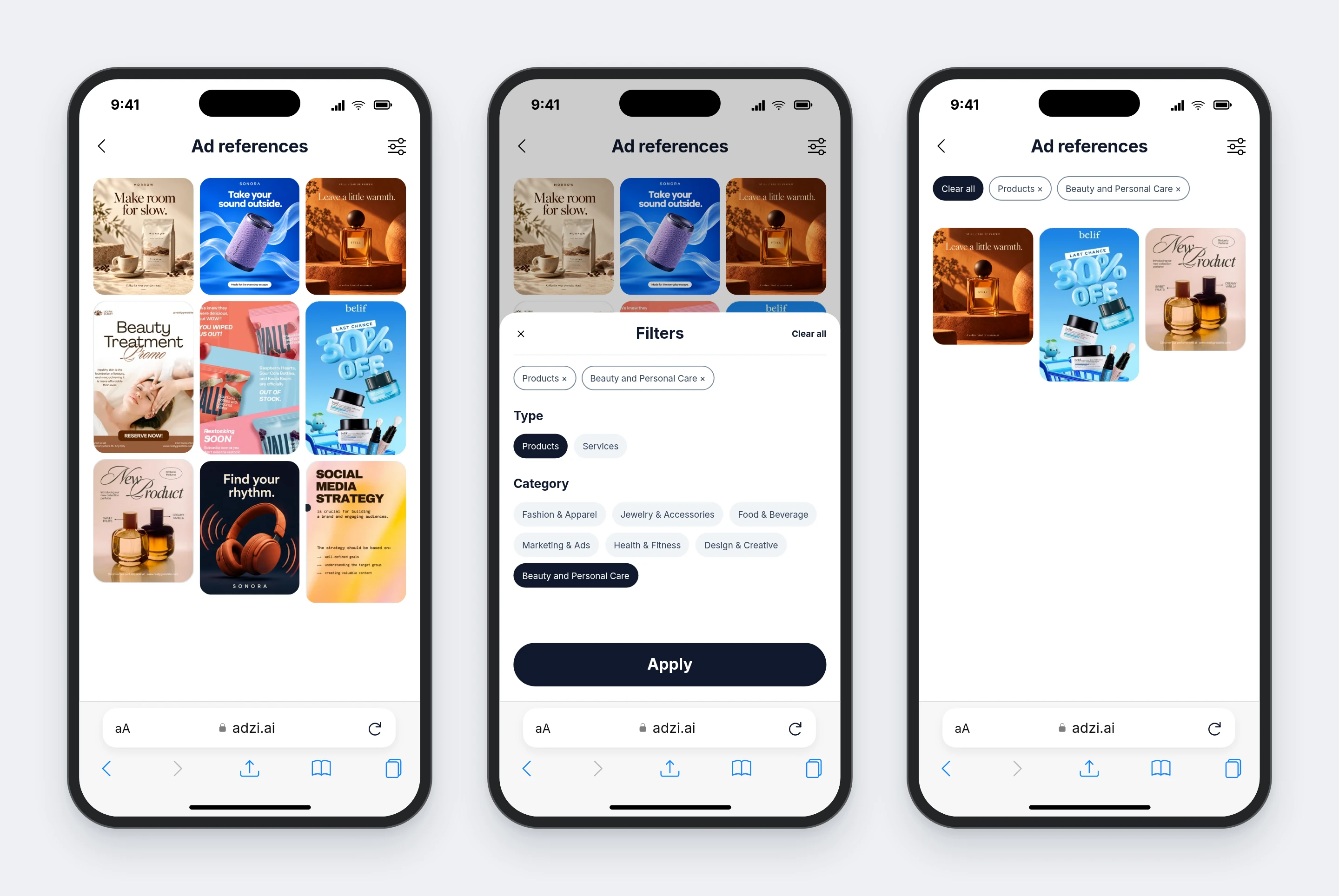
Find a direction in the reference library
Filters narrow the library by type and category. In Concept, Continue stays disabled until a reference is selected.
AI Studio / Prompt Remix: change an existing creative with a specific instruction
Pick a saved ad, describe the change and review the variation. Here the SONORA background changes from blue to coral while the speaker, copy and layout remain consistent.
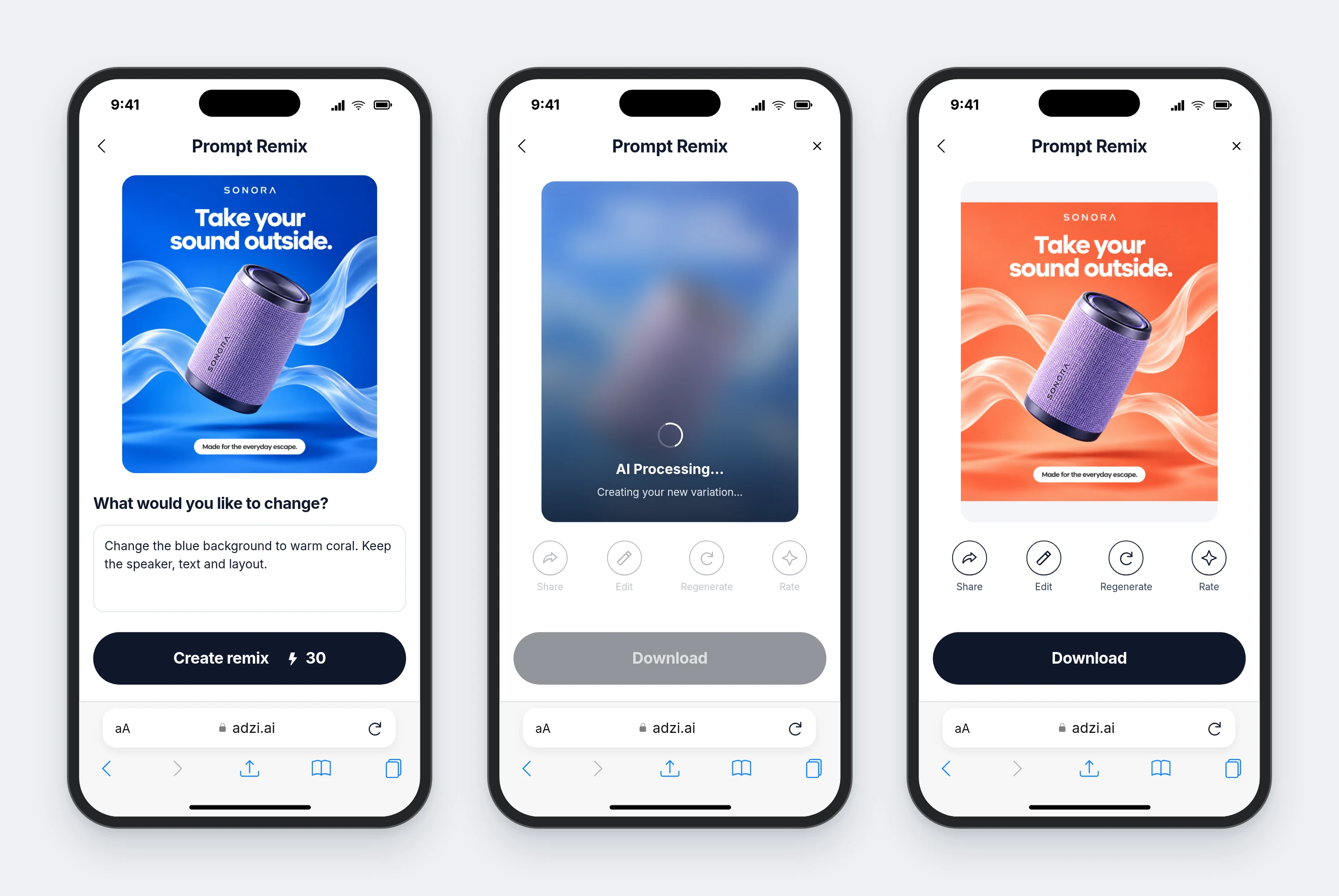
Prompt Remix · a new variation: add a creative from saved images, describe the change, create the variation, review it and download it.
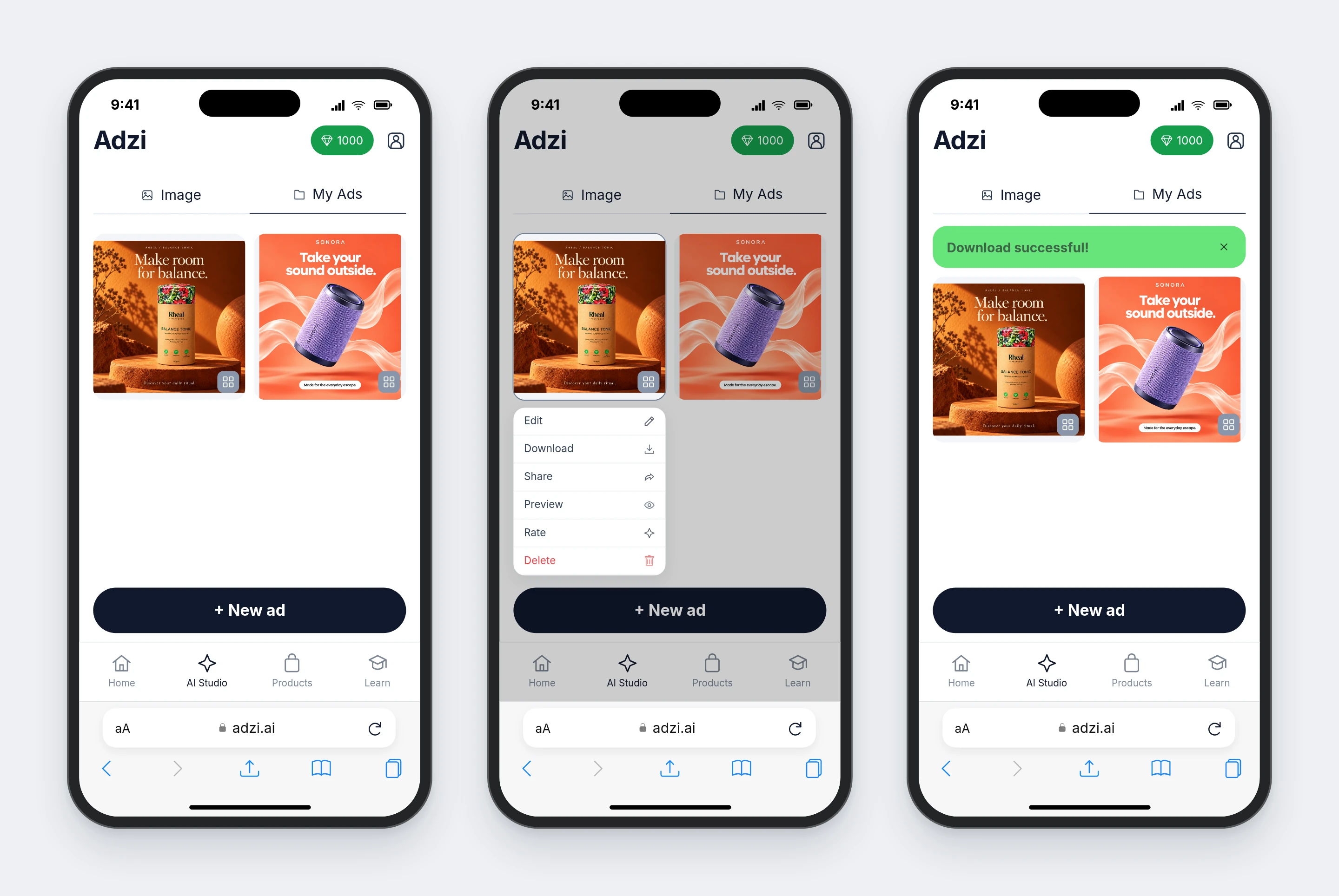
AI Studio / My Ads: keep results available for the next action
The library collects generated creatives with Edit, Download, Share, Preview, Rate and Delete. A green banner at the top confirms a successful download.
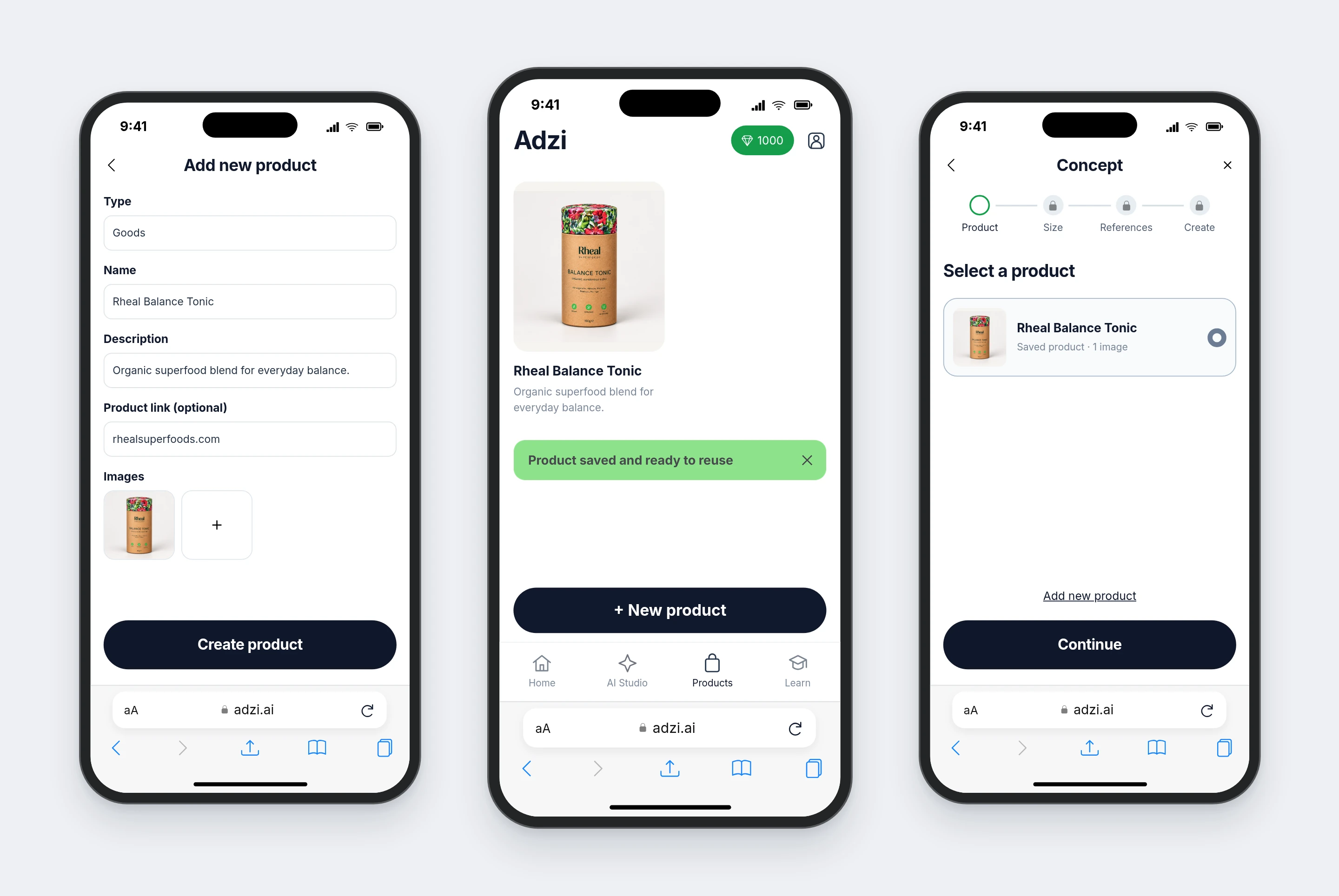
Products: save the product once, reuse it in creation
A product profile holds its type, name, description, link and images. The saved Rheal product moves into Concept without entering those details again.
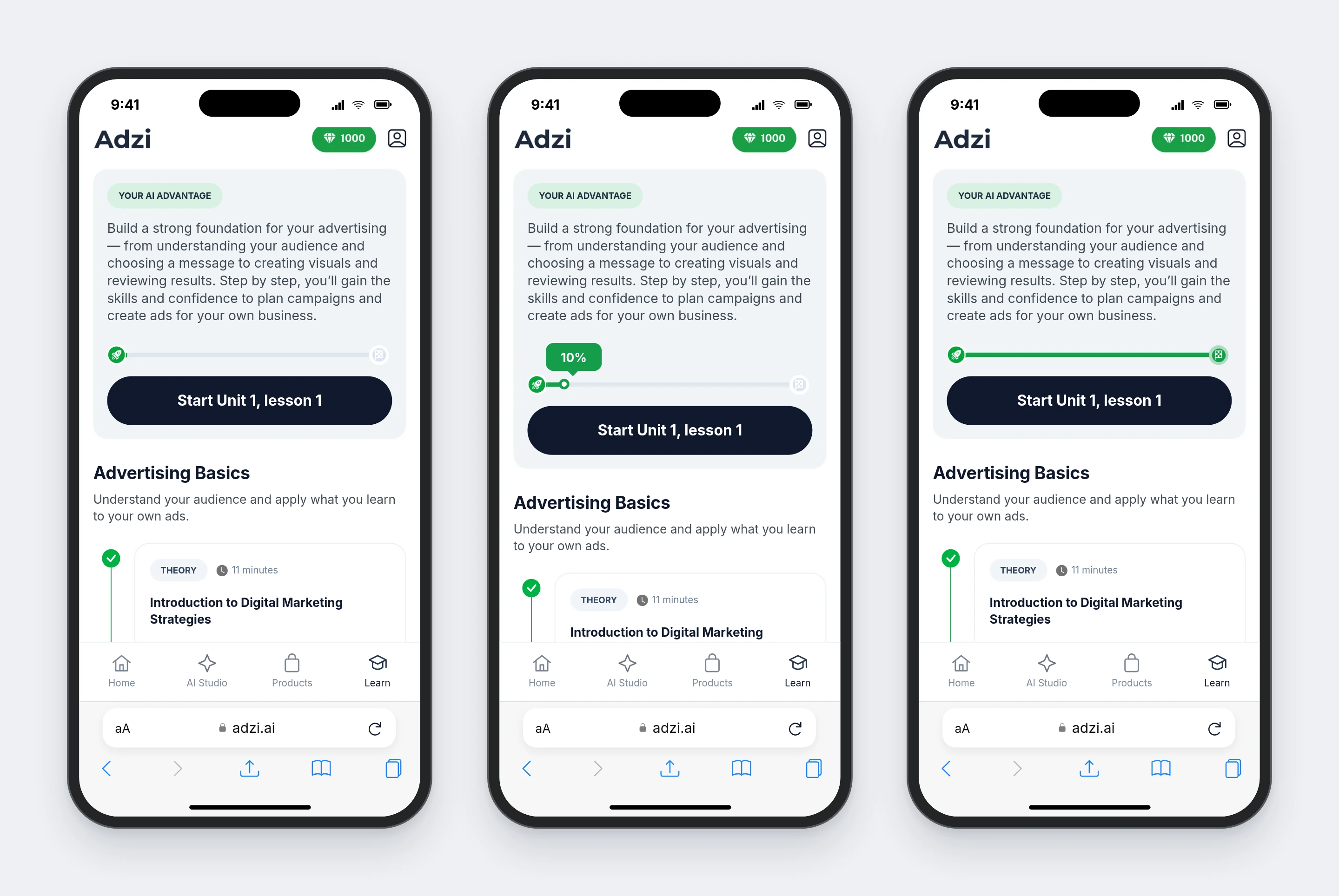
Learn: make advertising knowledge part of the product
The plan and lesson timeline stay together: course progress at the top, then theory, practice and a quiz. Completed theory remains available through Repeat this lesson, while the next task has a clear Start action. The course track is also accessible from Home.
Stage 3 · Later iteration: onboarding
Analytics changed how we introduced creation
Post-launch analytics showed that users more often began with learning. There was no generation-led onboarding at that stage. We added a first-use journey that collected the essentials and guided users toward generating their first creative.
- Users started with learning
Observed after launch: education was being used; creation needed a clearer first step.
- Lead toward the first creative
Later iteration: product inputs, an image and style swipes form one guided journey.
Onboarding · the first creative: choose the business type, enter the product name, description and link, add an image, swipe through styles, follow the personalization progress and review a sample first creative.
Result after introducing onboarding
More users created their first creative. The share of users generating a first creative increased, and use of the creation functionality became more active. This is a qualitative account of post-launch analytics; exact figures are not disclosed.
Results
Launch, observe, then guide the first creative
Adzi launched as a web app. I designed the product structure, creative workflows and later onboarding, adapting shared navigation and learning patterns from Finestro. Post-launch analytics showed users more often starting with learning. After we added onboarding into generation, a larger share created their first creative and use of the creation tools increased.
- Product experience
Structured the main product areas and the journeys between products, generation tools and creatives.
- AI creative workflows
Designed guided creation and prompt-based editing for users with different levels of confidence.
- System consistency
Adapted an existing design system and developed Adzi-specific patterns.
- Product development
Worked on interface improvements, supporting states, quality checks and onboarding.
Interface screens and videos are reconstructions from the supplied project materials. Creative samples and account values illustrate the UI; account values are not measured design outcomes. The usage insight and onboarding result come from post-launch product analytics; exact figures are not disclosed.
Summary
AI makes creative generation possible, but thoughtful UX makes it accessible.
- Structured workflows instead of an empty prompt
- Product information entered once and reused
- Learning built in, with a guided path to the first creative